Airtel DLT Portal Guide

How to Register Principal Entity (PE) to Telemarketer (TM) Mapping on Airtel DLT

Important update regarding the recent TCCCPR 2018 Guidelines. With effect from 11th December 2024, all SMS sent from Principal Entities must be traceable. Any SMS where the chain of telemarketers is not clearly defined or does not match will be rejected.

✓ Airtel Network ✓ Mandatory Compliance ✓ TCCCPR 2018 ✓ DLT Traceability

Quick Answer (TL;DR)

To create a PE-TM mapping chain on the Airtel DLT portal, log in and navigate to Manage SMS Workflow > Register New PE-TM Mapping. Click Start Creating, search for your Telemarketer using their DLT ID or Name, select them, and click Proceed. Finally, click Save to send an approval request to the Telemarketer, making your SMS traffic compliant with TRAI TCCCPR guidelines.
Regulatory Compliance

Why is PE-TM Binding Required for DLT?

To curb unsolicited commercial communications, TRAI mandates that the entire path of an SMS—from the Principal Entity (PE) (the brand) to the Telemarketer (TM) (the service provider)—must be officially mapped and approved on the DLT portal.

  • ✓ Rejection of Unmapped SMS: Any SMS lacking a clearly defined and matched chain will fail during DLT scrubbing resulting in non-delivery.
  • ✓ Approval Process: Both the Telemarketer (TM) and Telemarketer Distributor (TMD) must approve the workflow chain on the Airtel portal.
Process Verification

Once defined, the TMD hashes the entire workflow to ensure absolute compliance during final SMS submission for DLT scrubbing across the telecom network.

Tutorial Workflow

How to Register PE-TM Mapping on Airtel DLT

Follow these exact steps within your Airtel DLT portal dashboard to successfully establish your Principal Entity to Telemarketer chain.

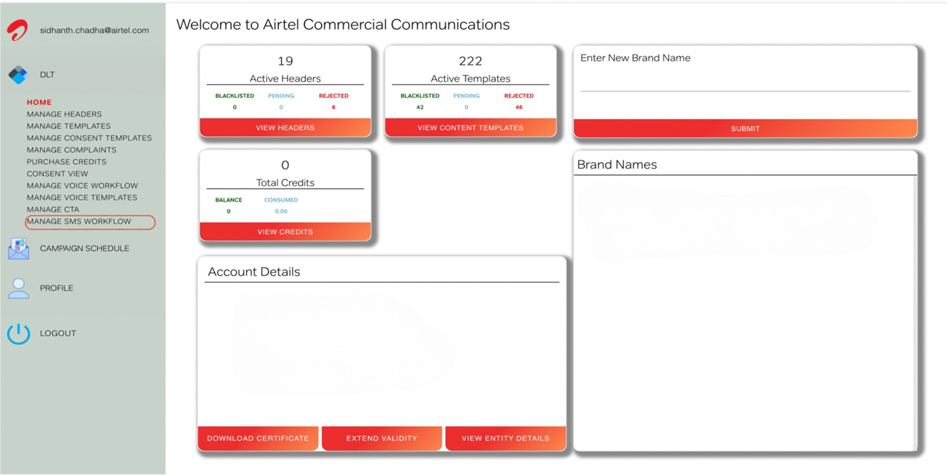
  1. Login & Navigate to SMS Workflow

    Login To Airtel DLT Portal as an enterprise using your registered details. Go to DLT -> Manage SMS Workflow from the Left Menu Bar.

    Airtel DLT Portal Login and Navigate Dashboard
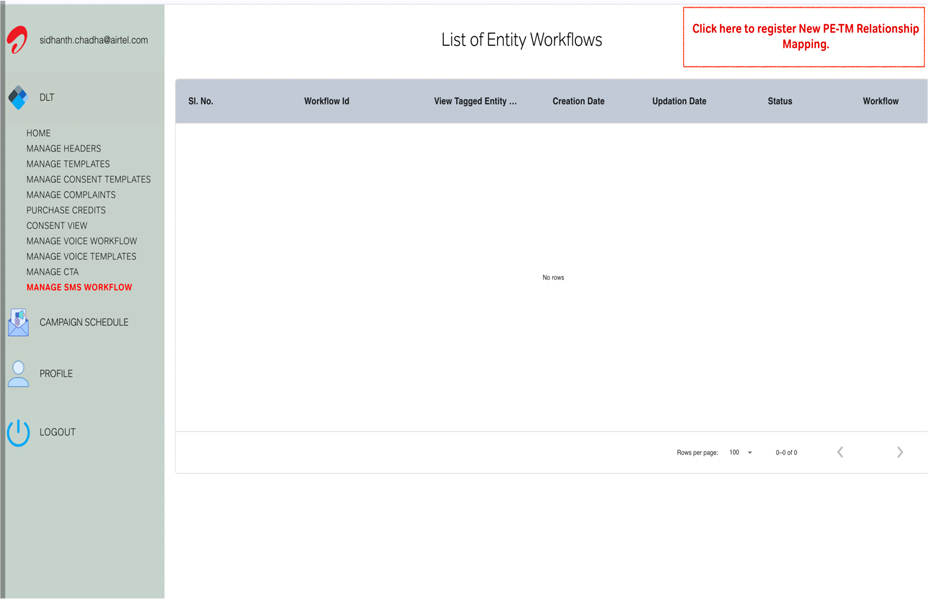
  2. Initiate Mapping

    Click on Register New PE- TM Mapping in the dashboard area.

    Register New PE TM Mapping Button
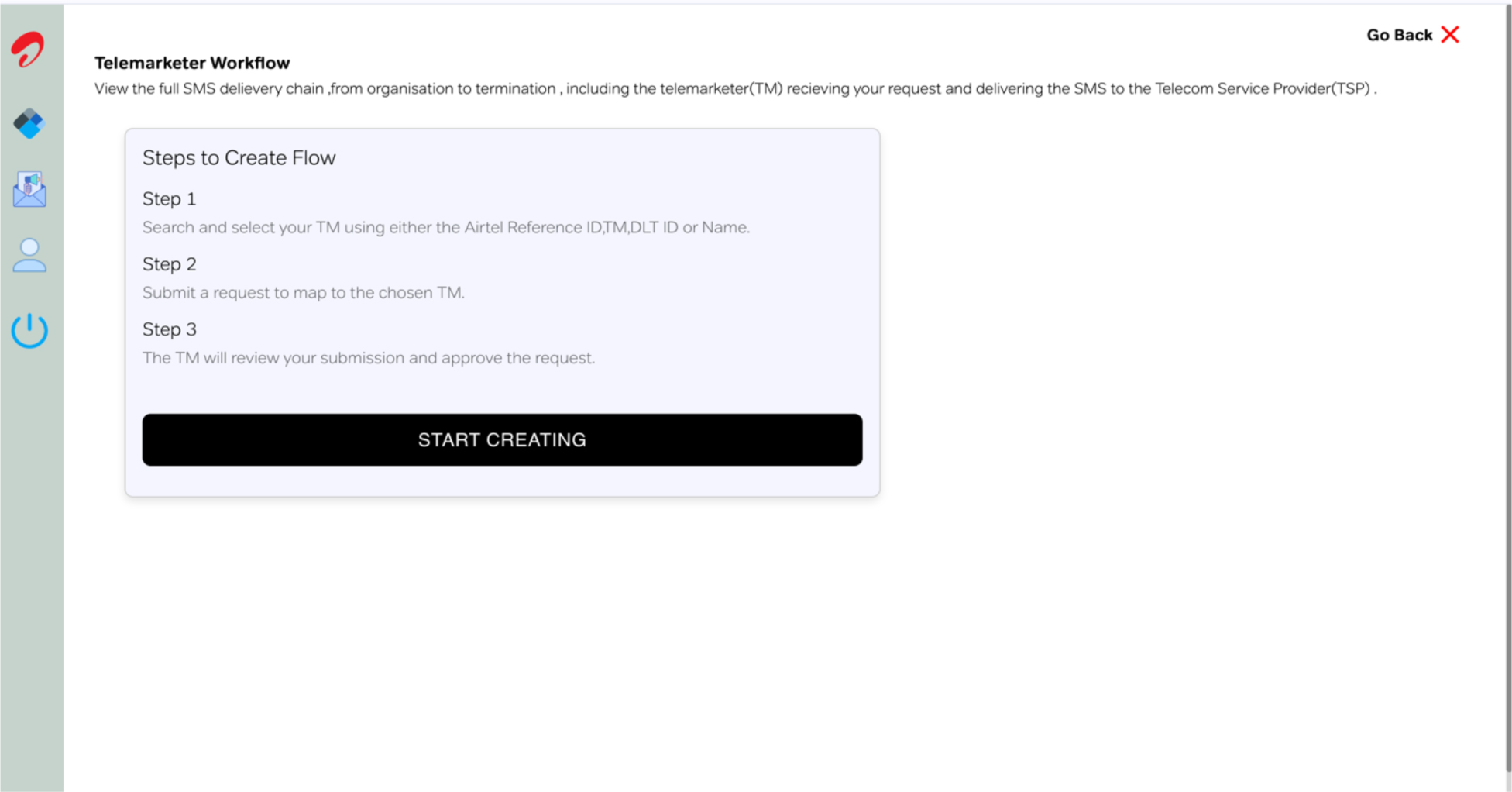
  3. Begin Creation Process

    Click on the Start Creating button to begin building the chain.

    Start Creating TM Chain Interface
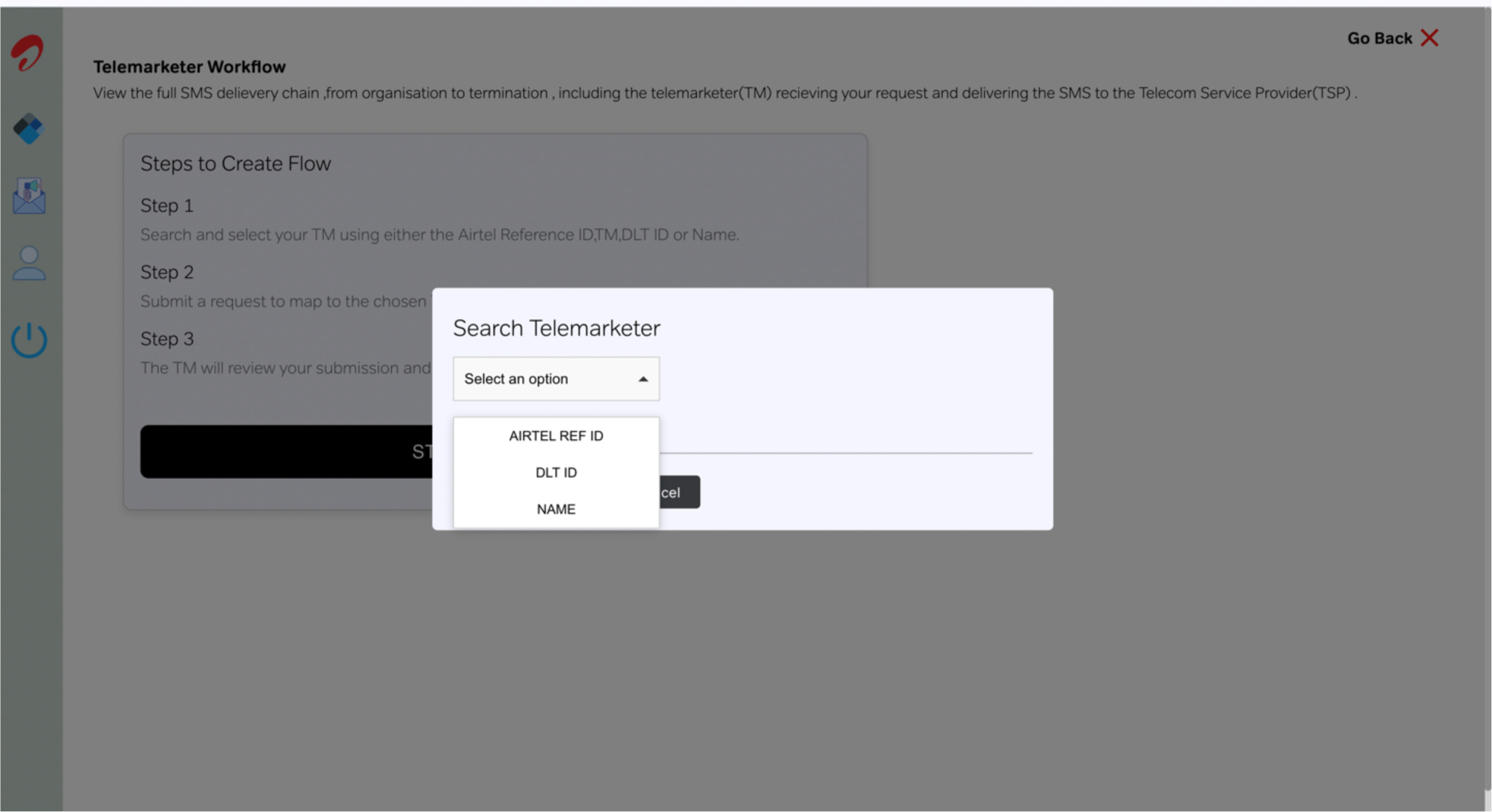
  4. Search Telemarketer

    Search for your specific Telemarketer using their Ref Id, DLT ID, or Name in the provided search bar.

    Search Telemarketer ID on DLT System
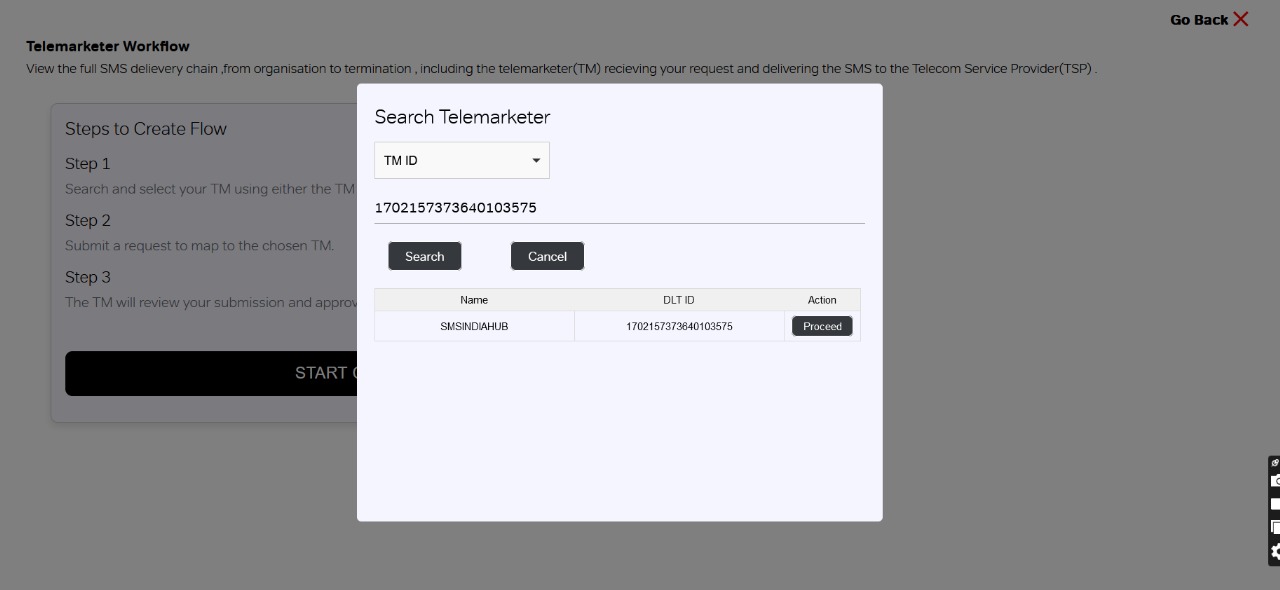
  5. Select and Proceed

    Choose your Telemarketer from the search results and click on Proceed.

    Proceed with TM Selection
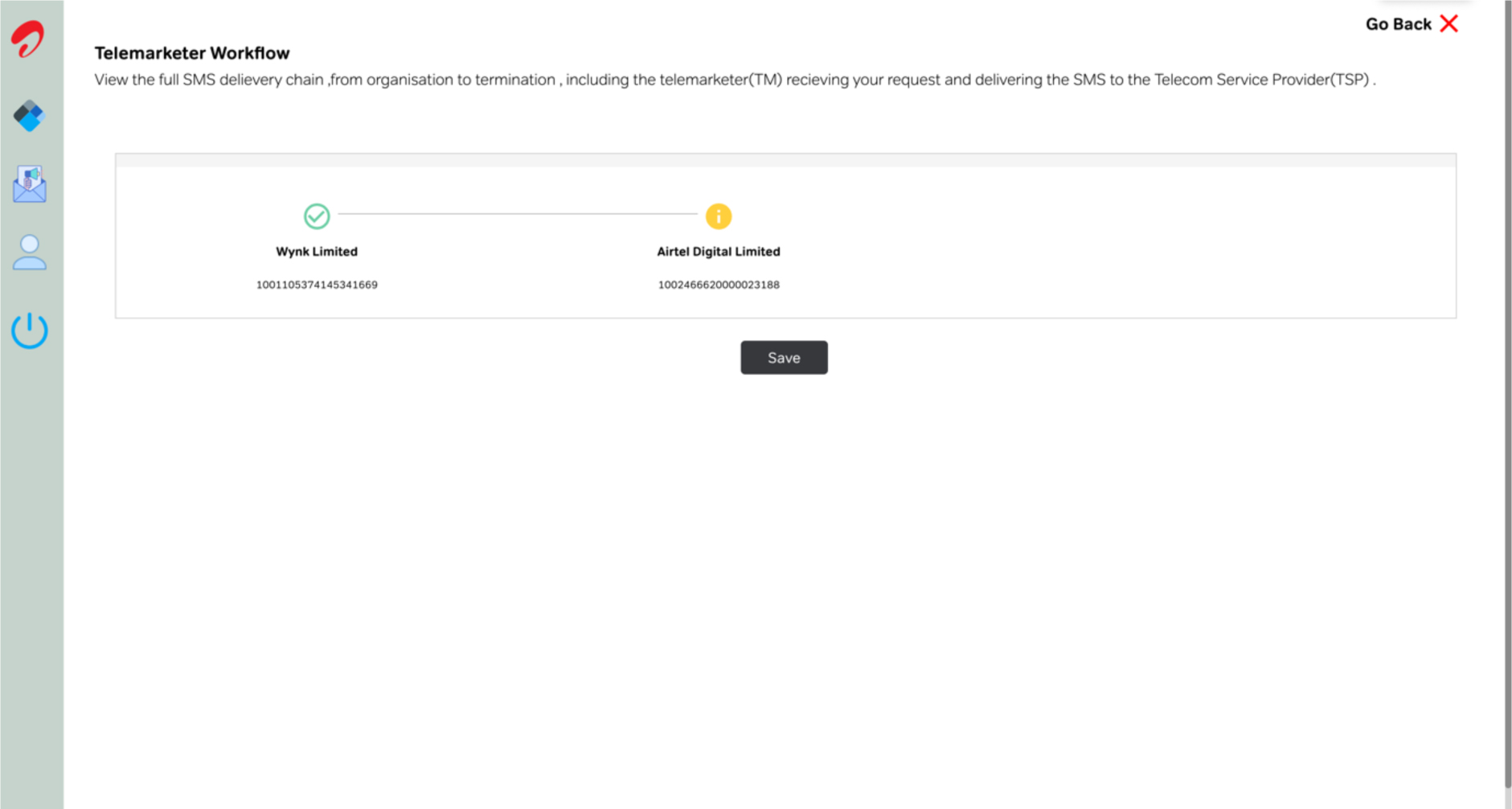
  6. Save and Request Approval

    Click On Save to Complete the Flow. The Approval Request will be automatically sent to the TM for final approval.

    Save and Complete PE-TM Flow

    Final Step: Click On View Workflow to see the current status of your PE-TM Request. Wait for the TM to approve your mapping.

ACCELERATE YOUR PIPELINE

Convinced? Confused? Have Ideas?

Want to see how SMSINDIAHUB can Help Your Business Achieve the Next Phase of Growth?

Instant API & DLT Activation
99.99% Guaranteed SLA
Free Demo
24/7 Dedicated Support
Get in Touch With Us

Quick setup • Free trial credits • Dedicated manager

Whatsapp chat